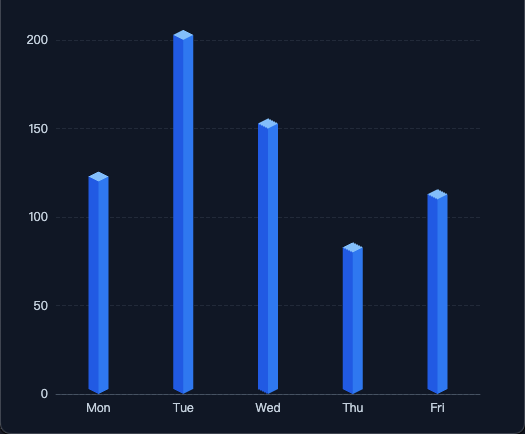
ECharts 3D 图表 | 3D 柱状图和 3D 饼图实现思路

整理一下 ECharts 里 3D 图表到底怎么做。

这篇不铺太多无关理论,主要讲两件事:柱状图为什么一般做成伪 3D,饼图为什么最后通常会走到 echarts-gl,以及中间最关键的实现思路到底是什么。

1. 伪 3D 柱状图怎么做

1.1 柱状图更适合做伪 3D

柱状图本身就是比较规则的几何结构,目标通常也不是做成一个可以随意旋转的三维场景,而是让画面更有立体感一点。放在 ECharts 这个语境里,柱状图走伪 3D 会更顺手,因为它的结构足够规整,拆分和拼接都比较直接,成本也比真 3D 低很多。对大屏来说,已经够用了。

1.2 先把一根柱子拆成三个面

伪 3D 的核心,其实就是先把一根柱子拆成三个面:左侧面、右侧面、顶面。只要这三个面的顶点关系对了,立体感就已经出来了,后面的渐变、高光、阴影,都只是继续往上加视觉包装。

这一块核心就是 echarts.graphic.extendShape。如果你现在只是想先把图做出来,其实不用一开始就把 CubeLeftCubeRightCubeTop 的路径细节全吃透,先把它当成一套固定模板来用就够了。更重要的是知道 offsetXoffsetY 在控制什么。

1
2
3
4
5
6
7
8
9
10
11
12
13
14
15
16
17
18
19
20
21
22
23
24
25
26
27
28
29
30
31
32
33
34
35
36
37
38
39
40
41
42
43
44
45
46
47
48
49
50
51
52
53
54
55
56
const offsetX = 12 // 顶面相对柱体正面,水平方向错开的距离
const offsetY = 6 // 顶面相对柱体正面,垂直方向抬起的距离

const CubeLeft = echarts.graphic.extendShape({
shape: { x: 0, y: 0 },
buildPath: function (ctx, shape) {
const xAxisPoint = shape.xAxisPoint
const c0 = [shape.x, shape.y] // 左侧面的上前点
const c1 = [shape.x - offsetX, shape.y - offsetY] // 左侧面的上后点
const c2 = [xAxisPoint[0] - offsetX, xAxisPoint[1] - offsetY] // 左侧面的下后点
const c3 = [xAxisPoint[0], xAxisPoint[1]] // 左侧面的下前点

ctx.moveTo(c0[0], c0[1])
ctx.lineTo(c1[0], c1[1])
ctx.lineTo(c2[0], c2[1])
ctx.lineTo(c3[0], c3[1])
ctx.closePath()
}
})

const CubeRight = echarts.graphic.extendShape({
shape: { x: 0, y: 0 },
buildPath: function (ctx, shape) {
const xAxisPoint = shape.xAxisPoint
const c1 = [shape.x, shape.y] // 右侧面的上前点
const c2 = [xAxisPoint[0], xAxisPoint[1]] // 右侧面的下前点
const c3 = [xAxisPoint[0] + offsetX, xAxisPoint[1] - offsetY] // 右侧面的下后点
const c4 = [shape.x + offsetX, shape.y - offsetY] // 右侧面的上后点

ctx.moveTo(c1[0], c1[1])
ctx.lineTo(c2[0], c2[1])
ctx.lineTo(c3[0], c3[1])
ctx.lineTo(c4[0], c4[1])
ctx.closePath()
}
})

const CubeTop = echarts.graphic.extendShape({
shape: { x: 0, y: 0 },
buildPath: function (ctx, shape) {
const c1 = [shape.x, shape.y] // 顶面的前点
const c2 = [shape.x + offsetX, shape.y - offsetY] // 顶面的右点
const c3 = [shape.x, shape.y - offsetY * 2] // 顶面的后点
const c4 = [shape.x - offsetX, shape.y - offsetY] // 顶面的左点

ctx.moveTo(c1[0], c1[1])
ctx.lineTo(c2[0], c2[1])
ctx.lineTo(c3[0], c3[1])
ctx.lineTo(c4[0], c4[1])
ctx.closePath()
}
})

echarts.graphic.registerShape('CubeLeft', CubeLeft)
echarts.graphic.registerShape('CubeRight', CubeRight)
echarts.graphic.registerShape('CubeTop', CubeTop)

这里真正要抓住的是 offsetXoffsetY。可以把它理解成:本来柱子正面只是一个竖着的矩形,现在我们把顶部那一圈顶点,额外往右上角挪了一下,于是就多出了左侧面、右侧面和顶面。

offsetX 控制横向挪多少,值越大,左右侧面看起来越宽;offsetY 控制纵向抬多少,值越大,顶面看起来越高。两个值一起看,就是这根柱子“斜出去”多少。

1.3 再用 renderItem 把三个面拼回去

上面只是把三个零件定义出来了,真正把它们拼成一根柱子,是在 renderItem 里做的。这里最重要的是先拿到底部坐标和顶部坐标,再把同一个点分别传给三个面。

1
2
3
4
5
6
7
8
9
10
11
12
13
14
15
16
17
18
19
20
21
22
23
24
25
26
27
28
29
30
31
32
33
34
35
36
37
38
39
40
41
42
43
series: [
{
type: 'custom',
renderItem: function (params, api) {
const xAxisPoint = api.coord([api.value(0), 0]) // 当前类目在底部的位置
const topPoint = api.coord([api.value(0), api.value(1)]) // 当前柱子的顶部位置

return {
type: 'group',
children: [
{
type: 'CubeLeft',
shape: {
xAxisPoint,
x: topPoint[0],
y: topPoint[1]
},
style: { fill: leftColor }
},
{
type: 'CubeRight',
shape: {
xAxisPoint,
x: topPoint[0],
y: topPoint[1]
},
style: { fill: rightColor }
},
{
type: 'CubeTop',
shape: {
xAxisPoint,
x: topPoint[0],
y: topPoint[1]
},
style: { fill: topColor }
}
]
}
},
data: values.map((value, index) => [index, value])
}
]

这一段里真正需要看懂的,是 api.coord() 在做什么。它负责把数据坐标转成画布坐标,所以 topPointxAxisPoint 才能真正落到图上。只要这两个关键点的坐标关系对了,三个面就能被拼成一根完整的伪 3D 柱子。

示例图:
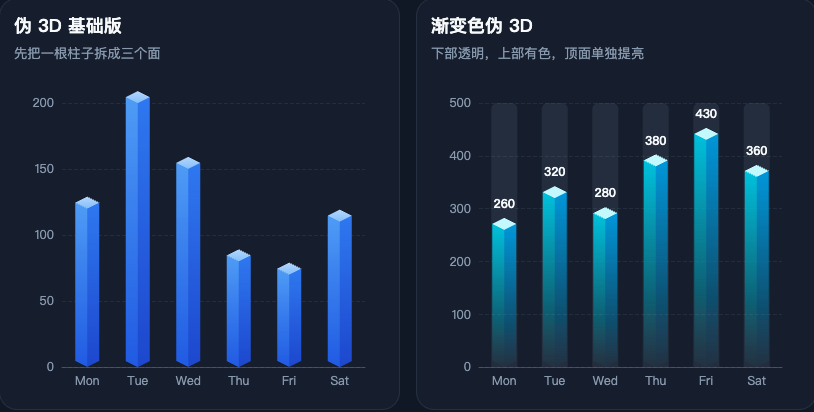
echarts-3D-bar-demo

1.4 渐变色的伪 3D 柱图

改每个面的 fill。侧面用线性渐变,底部透明一点,顶部颜色重一点;顶面一般单独用更亮的纯色或者亮一点的渐变。

1
2
3
4
5
6
7
8
9
10
11
const leftColor = new echarts.graphic.LinearGradient(0, 1, 0, 0, [
{ offset: 0, color: 'rgba(34, 211, 238, 0.02)' },
{ offset: 1, color: 'rgba(34, 211, 238, 0.92)' }
])

const rightColor = new echarts.graphic.LinearGradient(0, 1, 0, 0, [
{ offset: 0, color: 'rgba(14, 165, 233, 0.03)' },
{ offset: 1, color: 'rgba(14, 165, 233, 0.95)' }
])

const topColor = '#cffafe'

1.5 最小可运行示例

echarts-3D-bar-basic-demo

1
2
3
4
5
6
7
8
9
10
11
12
13
14
15
16
17
18
19
20
21
22
23
24
25
26
27
28
29
30
31
32
33
34
35
36
37
38
39
40
41
42
43
44
45
46
47
48
49
50
51
52
53
54
55
56
57
58
59
60
61
62
63
64
65
66
67
68
69
70
71
72
73
74
75
76
77
78
79
80
81
82
83
84
85
86
87
88
89
90
91
92
93
94
95
96
97
98
99
100
101
102
103
104
105
106
107
108
109
110
111
112
113
114
115
116
117
118
119
120
121
122
123
124
125
126
127
128
129
130
131
132
133
134
135
136
137
138
139
140
141
142
143
144
145
146
147
148
149
150
151
<!doctype html>
<html lang="zh-CN">
<head>
<meta charset="UTF-8" />
<meta name="viewport" content="width=device-width, initial-scale=1.0" />
<title>最基础的伪 3D 柱状图</title>
<script src="https://unpkg.com/echarts@5.4.3/dist/echarts.min.js"></script>
<style>
* {
box-sizing: border-box;
}

body {
margin: 0;
background: #0f172a;
color: #e2e8f0;
font-family: "Microsoft YaHei", sans-serif;
}

#chart {
width: 100%;
height: 100vh;
}
</style>
</head>
<body>
<div id="chart"></div>

<script>
const chart = echarts.init(document.getElementById('chart'))

const offsetX = 10
const offsetY = 5
const categories = ['Mon', 'Tue', 'Wed', 'Thu', 'Fri']
const values = [120, 200, 150, 80, 110]

const CubeLeft = echarts.graphic.extendShape({
shape: { x: 0, y: 0 },
buildPath: function (ctx, shape) {
const xAxisPoint = shape.xAxisPoint
const c0 = [shape.x, shape.y]
const c1 = [shape.x - offsetX, shape.y - offsetY]
const c2 = [xAxisPoint[0] - offsetX, xAxisPoint[1] - offsetY]
const c3 = [xAxisPoint[0], xAxisPoint[1]]

ctx.moveTo(c0[0], c0[1])
ctx.lineTo(c1[0], c1[1])
ctx.lineTo(c2[0], c2[1])
ctx.lineTo(c3[0], c3[1])
ctx.closePath()
}
})

const CubeRight = echarts.graphic.extendShape({
shape: { x: 0, y: 0 },
buildPath: function (ctx, shape) {
const xAxisPoint = shape.xAxisPoint
const c1 = [shape.x, shape.y]
const c2 = [xAxisPoint[0], xAxisPoint[1]]
const c3 = [xAxisPoint[0] + offsetX, xAxisPoint[1] - offsetY]
const c4 = [shape.x + offsetX, shape.y - offsetY]

ctx.moveTo(c1[0], c1[1])
ctx.lineTo(c2[0], c2[1])
ctx.lineTo(c3[0], c3[1])
ctx.lineTo(c4[0], c4[1])
ctx.closePath()
}
})

const CubeTop = echarts.graphic.extendShape({
shape: { x: 0, y: 0 },
buildPath: function (ctx, shape) {
const c1 = [shape.x, shape.y]
const c2 = [shape.x + offsetX, shape.y - offsetY]
const c3 = [shape.x, shape.y - offsetY * 2]
const c4 = [shape.x - offsetX, shape.y - offsetY]

ctx.moveTo(c1[0], c1[1])
ctx.lineTo(c2[0], c2[1])
ctx.lineTo(c3[0], c3[1])
ctx.lineTo(c4[0], c4[1])
ctx.closePath()
}
})

echarts.graphic.registerShape('CubeLeftBasic', CubeLeft)
echarts.graphic.registerShape('CubeRightBasic', CubeRight)
echarts.graphic.registerShape('CubeTopBasic', CubeTop)

chart.setOption({
tooltip: {
trigger: 'axis',
axisPointer: { type: 'shadow' }
},
grid: {
left: 56,
right: 30,
top: 40,
bottom: 40
},
xAxis: {
type: 'category',
data: categories,
axisTick: { show: false },
axisLine: { lineStyle: { color: 'rgba(148, 163, 184, 0.35)' } },
axisLabel: { color: '#cbd5e1' }
},
yAxis: {
type: 'value',
splitLine: { lineStyle: { color: 'rgba(148, 163, 184, 0.15)', type: 'dashed' } },
axisLabel: { color: '#cbd5e1' }
},
series: [
{
name: '访问量',
type: 'custom',
renderItem: function (params, api) {
const xAxisPoint = api.coord([api.value(0), 0])
const topPoint = api.coord([api.value(0), api.value(1)])

return {
type: 'group',
children: [
{
type: 'CubeLeftBasic',
shape: { xAxisPoint, x: topPoint[0], y: topPoint[1] },
style: { fill: '#2563eb' }
},
{
type: 'CubeRightBasic',
shape: { xAxisPoint, x: topPoint[0], y: topPoint[1] },
style: { fill: '#3b82f6' }
},
{
type: 'CubeTopBasic',
shape: { xAxisPoint, x: topPoint[0], y: topPoint[1] },
style: { fill: '#93c5fd' }
}
]
}
},
data: values.map((value, index) => [index, value])
}
]
})

window.addEventListener('resize', () => chart.resize())
</script>
</body>
</html>

1.6 伪 3D 柱状图注意点

第一,renderItem 里拿到的不是最终像素值,而是数据坐标,要靠 api.coord() 转成画布坐标。这里一旦坐标拿错,三个面就会错位,看起来像“散架”了一样。

第二,底部基准点一般取 api.coord([api.value(0), 0])。这里的 0 不是随便写的,它表示柱子落在数值轴的 0 位置。如果你后面做的是正负值混合柱,底部基准点怎么算,需要跟着坐标轴逻辑一起改。

第三,offsetXoffsetY 不要乱拉。值太小,立体感不明显;值太大,柱子就会显得很扁,甚至把相邻类目挤在一起。常见做法还是让它保持一个比较稳定的倾斜比例,比如 12 : 610 : 5 这种接近 2 : 1 的关系。

2. 3D 饼图怎么做

2.1 饼图为什么一般会用 echarts-gl

柱状图是规则直线结构,拆三面很自然;但饼图不一样。饼图一旦开始追求厚度、弧面和旋转,继续用 2D 去硬拼,成本就会越来越高,效果也不一定稳。所以到了这里,通常就会换到 echarts-gl,直接按三维曲面的思路来做。

2.2 关于 echarts-gl 版本

我这份示例里用的是下面这组版本:

1
2
<script src="https://unpkg.com/echarts@5.4.3/dist/echarts.min.js"></script>
<script src="https://unpkg.com/echarts-gl@2.0.8/dist/echarts-gl.min.js"></script>

这里写出来,不是说后面别的版本一定不能用,而是这组版本在我这套代码里是跑通的。后面如果你升级版本,最好还是自己再过一遍兼容性。

2.3 每个扇区其实都是一个 surface

3D 饼图这里,真正起作用的不是普通的 type: 'pie',而是 type: 'surface'。也就是说,每一个扇区其实都是一个单独的 series,然后再通过参数方程把它画成空间曲面。

1
2
3
4
5
6
7
8
{
name: item.name,
type: 'surface',
parametric: true,
wireframe: { show: false },
itemStyle: { color: item.color },
parametricEquation: getParametricEquation(...)
}

所以整个思路其实可以简单理解成三步:先把原始数据转成起止比例,再让每一块数据生成一个独立的 series,最后再用参数方程把每个扇区画出来。

2.4 getParametricEquation 简单理解一下

这一块没必要往数学里钻太深,真正需要看懂的是这些参数到底在控制什么。startRatioendRatio 决定当前扇区从哪里开始、到哪里结束;k 控制内外径关系,也就是更像实心饼还是环形饼;h 控制厚度;isSelectedisHovered 控制状态变化。公式本身可以当成一个模板来看,但这些参数和最后效果之间的对应关系,最好还是要有数。

1
2
3
4
5
6
7
8
9
10
11
12
13
14
15
16
17
18
19
20
function getParametricEquation(startRatio, endRatio, isSelected, isHovered, k, h) {
const startRadian = startRatio * Math.PI * 2
const endRadian = endRatio * Math.PI * 2

return {
u: { min: -Math.PI, max: Math.PI * 3, step: Math.PI / 32 },
v: { min: 0, max: Math.PI * 2, step: Math.PI / 20 },
x: (u, v) => {
if (u < startRadian) return Math.cos(startRadian) * (1 + Math.cos(v) * k)
if (u > endRadian) return Math.cos(endRadian) * (1 + Math.cos(v) * k)
return Math.cos(u) * (1 + Math.cos(v) * k)
},
y: (u, v) => {
if (u < startRadian) return Math.sin(startRadian) * (1 + Math.cos(v) * k)
if (u > endRadian) return Math.sin(endRadian) * (1 + Math.cos(v) * k)
return Math.sin(u) * (1 + Math.cos(v) * k)
},
z: (u, v) => (Math.sin(v) > 0 ? h * 0.1 : -1)
}
}

上面这段不需要你现在逐行推公式,先知道它是在把“扇区范围、内外径和厚度”转成一块能画出来的曲面就够了。真正需要先记住的,还是 startRatioendRatiokh 这几个参数分别控制什么。

2.5 从基础到实战

只把扇区画出来,当然已经能形成一个基础版 3D 饼图了。如果继续往下做,常见还会再加几种处理。

一个是数据驱动高度。不是所有扇区都保持同样的厚度,而是先把数值归一化,再映射到一个合理的厚度区间,这样空间维度就真正参与了表达。这里的重点不是“厚度越夸张越好”,而是让差异可见,同时又不至于把图形拉得太怪。

1
2
3
4
5
6
7
const maxVal = Math.max(...data.map(item => item.value))
const minVal = Math.min(...data.map(item => item.value))

const normalizeH = value => {
if (maxVal === minVal) return 3
return 1 + ((value - minVal) / (maxVal - minVal)) * 4
}

还有一个是外置 DOM 图例。默认 legend 当然也能用,但到了 3D 饼图这里,经常会遇到几个问题:一是图例和 3D 主体容易互相抢空间,二是名称、数值、颜色块、布局有时候要拆开控制,三是你可能还想做两列、分组、强调值这种更自由的排版。这时候直接在图表外面用 HTML 拼一层图例,反而更直接,控制权也更大。思路其实很简单,就是把数据循环一遍,然后用 DOM 把颜色、名称、数值渲染出来。

还有一种写法,是在饼图下面垫一个几乎看不见的承接盘,也就是这里的 mouseoutSeries。这样鼠标从某个扇区移开的时候,不会一下子掉到空白区域,hover 切换会顺一点。深圳医保那套整理出来的代码里,也保留了这一层写法。

1
2
3
4
5
6
7
8
series.push({
name: 'mouseoutSeries',
type: 'surface',
parametric: true,
wireframe: { show: false },
itemStyle: { opacity: 0.005, color: '#0f172a' },
parametricEquation: { ... }
})

如果只想直接复制一份最基础、能跑起来的 3D 饼图,可以直接看这个文件:

2.6 最小可运行示例
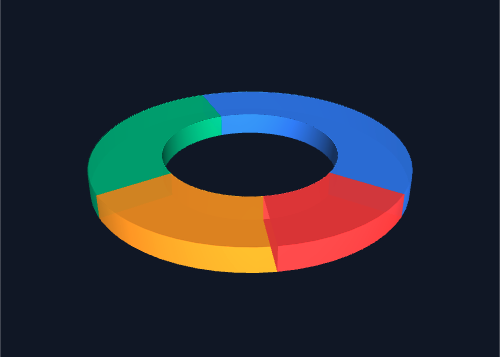
echarts-3D-pie-basic-demo

1
2
3
4
5
6
7
8
9
10
11
12
13
14
15
16
17
18
19
20
21
22
23
24
25
26
27
28
29
30
31
32
33
34
35
36
37
38
39
40
41
42
43
44
45
46
47
48
49
50
51
52
53
54
55
56
57
58
59
60
61
62
63
64
65
66
67
68
69
70
71
72
73
74
75
76
77
78
79
80
81
82
83
84
85
86
87
88
89
90
91
92
93
94
95
96
97
98
99
100
101
102
103
104
105
106
107
<!doctype html>
<html lang="zh-CN">
<head>
<meta charset="UTF-8" />
<meta name="viewport" content="width=device-width, initial-scale=1.0" />
<title>最基础的 3D 饼图</title>
<script src="https://unpkg.com/echarts@5.4.3/dist/echarts.min.js"></script>
<script src="https://unpkg.com/echarts-gl@2.0.8/dist/echarts-gl.min.js"></script>
<style>
* {
box-sizing: border-box;
}

body {
margin: 0;
background: #0f172a;
}

#chart {
width: 100%;
height: 100vh;
}
</style>
</head>
<body>
<div id="chart"></div>

<script>
const chart = echarts.init(document.getElementById('chart'))

function getParametricEquation(startRatio, endRatio, k, h) {
const startRadian = startRatio * Math.PI * 2
const endRadian = endRatio * Math.PI * 2

return {
u: { min: -Math.PI, max: Math.PI * 3, step: Math.PI / 32 },
v: { min: 0, max: Math.PI * 2, step: Math.PI / 20 },
x: (u, v) => {
if (u < startRadian) return Math.cos(startRadian) * (1 + Math.cos(v) * k)
if (u > endRadian) return Math.cos(endRadian) * (1 + Math.cos(v) * k)
return Math.cos(u) * (1 + Math.cos(v) * k)
},
y: (u, v) => {
if (u < startRadian) return Math.sin(startRadian) * (1 + Math.cos(v) * k)
if (u > endRadian) return Math.sin(endRadian) * (1 + Math.cos(v) * k)
return Math.sin(u) * (1 + Math.cos(v) * k)
},
z: (u, v) => (Math.sin(v) > 0 ? h * 0.1 : -1)
}
}

function buildPie3DSeries(data, internalRatio, height) {
const total = data.reduce((sum, item) => sum + item.value, 0)
const k = (1 - internalRatio) / (1 + internalRatio)
let currentValue = 0

return data.map(item => {
const startRatio = currentValue / total
currentValue += item.value
const endRatio = currentValue / total

return {
name: item.name,
type: 'surface',
parametric: true,
wireframe: { show: false },
itemStyle: { color: item.color, opacity: 0.95 },
parametricEquation: getParametricEquation(startRatio, endRatio, k, height)
}
})
}

const data = [
{ name: '研发', value: 40, color: '#3b82f6' },
{ name: '销售', value: 28, color: '#10b981' },
{ name: '市场', value: 18, color: '#f59e0b' },
{ name: '运营', value: 14, color: '#ef4444' }
]

chart.setOption({
tooltip: {
formatter: params => {
const item = data.find(entry => entry.name === params.seriesName)
return item ? `${item.name}${item.value}` : ''
}
},
xAxis3D: { min: -1, max: 1 },
yAxis3D: { min: -1, max: 1 },
zAxis3D: { min: -1, max: 1 },
grid3D: {
show: false,
boxHeight: 16,
viewControl: {
alpha: 28,
beta: 32,
distance: 220,
rotateSensitivity: 0,
zoomSensitivity: 0
}
},
series: buildPie3DSeries(data, 0.55, 2)
})

window.addEventListener('resize', () => chart.resize())
</script>
</body>
</html>

3. 总结

如果只看柱状图这边,核心其实很明确,就是先把一根柱子拆成左侧面、右侧面和顶面,再用 renderItem 把三个面拼回去。后面不管你是换纯色、加渐变,还是做底部透明、顶部提亮,本质上都还是在这套结构上继续做表现。

饼图这边就不是这个路子了。因为它要处理的是弧面、厚度和旋转,所以更适合直接交给 echarts-gl。真正需要看懂的,不是把公式硬背下来,而是知道每个扇区本质上都是一个曲面,后面的高度、图例、hover 这些东西,都是围着这个基础继续往下加。

所以这篇想说的重点其实就两句:柱状图做 3D,优先考虑伪 3D;饼图如果要做 3D,重点不只是公式,而是整套展示效果怎么控制住。

本文经 AI 润色。